
I run a weekly photo cleanup routine because I want two things at the same time:
- Only curated photos in iCloud
- Real files on disk for archive and backup
I like having my photos as normal files. I can inspect them, back them up to external drives, and know exactly where they live instead of relying entirely on a cloud service.
For years, Dropbox Camera Uploads handled an important part of this workflow: photos arriving on my MacBook as normal files.
I use Apple Photos for curation, not as my archive, so that behavior mattered a lot.
When I started considering alternatives to Dropbox (for example Proton Drive), the gap became obvious. Sync exists, but getting camera photos automatically as files on disk is not guaranteed.
Once Dropbox Camera Uploads stopped being the center of my workflow, I had to rebuild that behavior myself.
Before
My weekly flow looked like this:
- Let Dropbox Camera Uploads sync iPhone photos and videos to my MacBook.
- Check duplicates and curate what I wanted to keep in iCloud.
- Run the pbc-organizer script I implemented to rename and move files by EXIF date.
- Move files into backup folders.
- Choose photos for my digital frame.
- Resize and convert them.
- Send them to the digital frame/tablet using LocalSend.
- Run backup scripts to external drives.
This workflow worked, but it was repetitive and fragile. The curation decisions were valuable. The glue work was not.
After I replaced my old Frameo digital frame with an Android tablet running Fotoo, the display and system improved, but the workflow was still mostly manual.
What I wanted instead
The idea was simple:
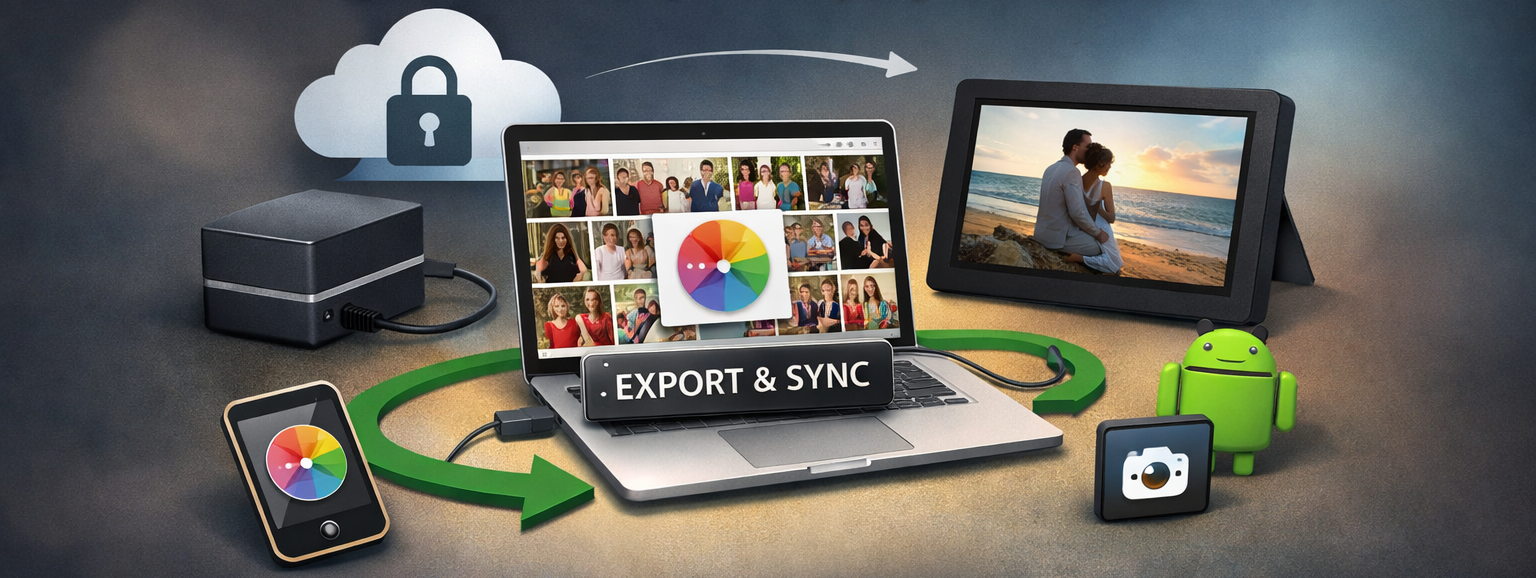
Apple Photos can handle syncing and curation, while automation handles exporting and filesystem organization.
So I built a small pipeline to restore the capability I cared about from Dropbox Camera Uploads:
- Photos arriving through sync
- Photos available as normal files on disk
- Deterministic backups
Core tools:
osxphotosfor exporting from Apple Photossipsfor image conversion and resizing- ADB over Wi-Fi for tablet transfer
rsyncfor backups
The automated pipeline
You can find the scripts in the photo-sync-pipeline repository.
I still manually decide what to delete, keep, and send to the digital frame. After that, scripts handle the mechanical steps.
The pipeline now does the following:
- Export photos and videos since a given date
- Place them into predictable directories
- Export the curated
Digital framealbum - Normalize file extensions
- Convert HEIC to JPG
- Resize and compress frame photos
- Push them to Android via ADB
- Trigger a media scan
- Restart Fotoo
- Clear the
Digital framealbum - Run backup sync jobs
Typical commands:
export-photos-since 2026-01-25
export-digital-frame
export-photos-since effectively replaces the “files on disk” behavior of Dropbox Camera Uploads.
Small pipeline diagram
This is the operational flow I usually follow each week:
It is still a curated workflow, not a fully automatic one. That is intentional, since I want the decisions to stay manual and the repetitive steps to be scripted.
Example exported filesystem structure
One of the main goals was to keep the exported files easy to inspect and back up. A simplified structure looks like this:
2026/
├── 01 - January
│   ├── 2026-01-01
│   │   ├── 2026-01-01 09.29.20.heic
│   │   ├── 2026-01-01 09.29.23.heic
│   │   ├── 2026-01-01 09.29.24.heic
│   │   ├── 2026-01-01 09.35.04.heic
│   │   ├── 2026-01-01 09.35.07.heic
│   │   ├── 2026-01-01 09.35.38.heic
│   │   └── 2026-01-01 18.32.27.heic
│   ├── 2026-01-02
│   │   ├── 2026-01-02 18.26.47.mov
│   │   └── 2026-01-02 18.26.51.jpg
│   ├── 2026-01-03
│   │   ├── 2026-01-03 09.32.47.heic
│   │   ├── 2026-01-03 09.32.48.heic
│   │   ├── 2026-01-03 09.32.52.heic
│   │   ├── 2026-01-03 09.32.54.heic
│   │   ├── 2026-01-03 09.32.55.heic
│   │   ├── 2026-01-03 09.32.59.heic
│   │   ├── 2026-01-03 10.46.40.heic
│   │   ├── 2026-01-03 10.46.42.heic
...
The exact layout can vary, but the important parts are:
- Deterministic paths
- Files visible in normal directories
- A separate place for digital frame exports
- Backup destinations that can be synced repeatedly
Why this is better
The main improvement is reduced mental overhead.
Before, I had to remember a long sequence of manual steps every week.
LocalSend was a good intermediate step for transferring photos to the tablet, but ADB made the process fully repeatable.
Now the Digital frame album acts as a signal, not storage:
- Add photos to the album
- Run the pipeline
- The batch is exported, transferred, and cleared
Final setup
The system now looks like this:
- Apple Photos + iCloud for sync and curation
- Filesystem directories as the archive
- ADB for transferring images to the digital frame
rsyncfor backups
No single vendor controls the entire workflow.
That is exactly what I wanted.